
How to Enable 144Hz / 165Hz Monitor: Correct Settings to Boost FPS (2026)
Learn step by step how to get maximum performance from your 144Hz or 165Hz monitor with Windows, NVIDIA, and AMD settings. Includes cable guide and troubleshooting.
If you’ve bought a new gaming monitor but the visuals still don’t feel smooth, you likely haven’t properly completed the enable 144Hz monitor setup. Modern monitors do not run at their maximum refresh rate by default, which can significantly limit your FPS experience. As of 2026, even though Windows and GPU software have improved, manually configuring the right settings is still critical. In this guide, you will learn in detail how to configure 144Hz monitor settings, which cable to use, and how to fix common issues.
Why Should 144Hz / 165Hz Be Enabled Manually?
Many users assume that simply plugging in a monitor will automatically deliver maximum performance. However, operating systems often select a lower refresh rate by default for compatibility reasons. This creates a serious disadvantage, especially in competitive gaming. A higher Hz value means smoother visuals and faster response time.
If you don’t complete the enable 144Hz monitor process, you might be using an expensive monitor as if it were 60Hz. This means you are not getting the value of your investment. The difference is especially noticeable in FPS and esports games.
Adjusting Refresh Rate via Windows
The first place you should check is Windows settings. Even if your GPU is correct, the system-wide settings might be limiting performance. In Windows 11 and later versions, this process is quite simple.
- Open the Settings menu
- Go to System → Display → Advanced display settings
- Select 144Hz or 165Hz under the refresh rate option
This step is the starting point for monitor performance settings. If you don’t see a high Hz option here, the issue is likely related to the cable or drivers.
NVIDIA Control Panel Settings
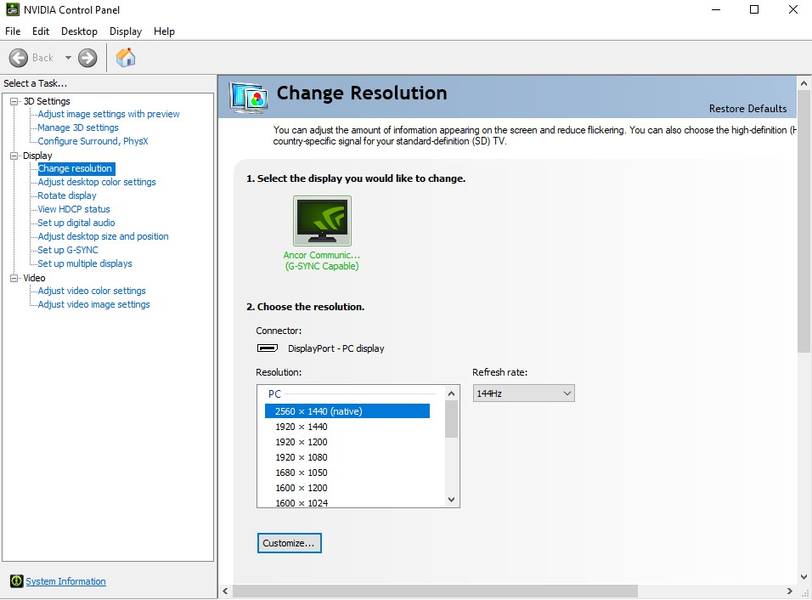
For NVIDIA users, the most stable method is to manually select the refresh rate via the control panel. While the interface has become simpler with newer drivers, the logic remains the same.
- Open NVIDIA Control Panel
- Go to Display → Change resolution
- Select the correct monitor
- Set the refresh rate to 144Hz / 165Hz
Without this setting, even if your in-game FPS is high, your display cannot reflect it. Also remember that driver updates may reset this setting.
AMD Radeon Settings
On the AMD side, the process is slightly different but equally important. You can configure it via Radeon software or Windows.
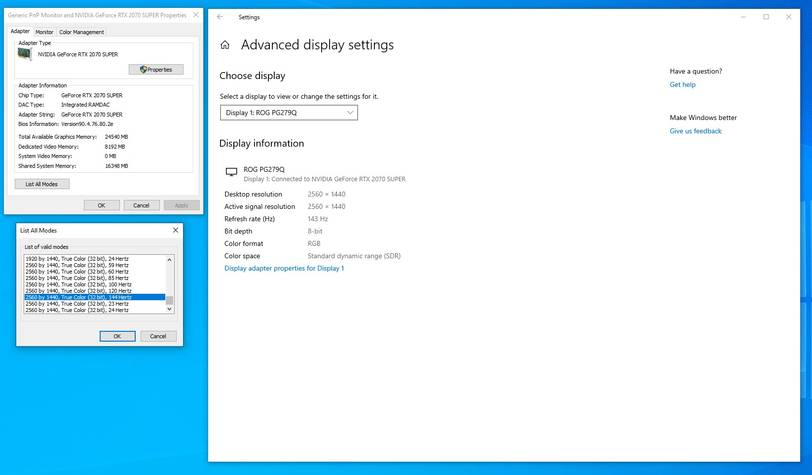
- Right-click on the desktop and open Display Settings
- Go to advanced display settings
- Select display adapter properties
- Click list all modes and choose a higher refresh rate
Alternatively, you can change the refresh rate from the “Display” tab in AMD Software. This is the more up-to-date and recommended method.
HDMI vs DisplayPort: Which Is Better?
Choosing the right cable is one of the foundations of performance. Using the wrong cable can prevent higher refresh rate options from appearing.
- DisplayPort 1.2+: The most stable option for 144Hz and above
- HDMI 2.0+: Supports 144Hz but depends on the model
- Older HDMI cables: Usually limited to 60Hz
As of 2026, DisplayPort remains the most reliable connection for gamers. If you want maximum performance, using DP is recommended.
Troubleshooting: If 144Hz Option Is Missing
Sometimes, even after configuring everything correctly, the 144Hz option may not appear. In that case, check the following:
- Check your cable (it may be outdated)
- Update your GPU drivers
- Check the Hz limit in the monitor’s OSD menu
- You might be using the wrong HDMI port
These steps solve most issues. However, in rare cases, a monitor firmware update may be required.
Who Is It Suitable For?
High refresh rate settings are especially critical for competitive gamers. Players of FPS, MOBA, and battle royale games will immediately feel the difference. Even in daily use, it provides a smoother experience.
When Should You Use It?
If you have a powerful GPU and achieve high FPS, these settings are essential. Otherwise, you won’t be using your hardware’s full potential. It is especially necessary for those playing above 120 FPS.
2026 Perspective
In 2026, 144Hz has become the standard, and monitors in the 165Hz–240Hz range are widespread. However, without proper configuration, these values mean nothing. While next-gen GPUs produce higher FPS, monitor settings still depend on user control.
Alternative Recommendation
If your system cannot maintain a stable 144Hz, you can use intermediate values like 120Hz. This provides a more stable experience and balances hardware load. Additionally, enabling technologies like G-Sync or FreeSync can reduce screen tearing.
Conclusion and Recommendation
The enable 144Hz monitor process may seem simple, but it has a major impact on performance. By correctly configuring Windows, NVIDIA, and AMD settings, you can get the most out of your monitor. With the right cable and regular checks, your system will always perform at its best. If you’ve bought a new monitor, don’t start gaming without applying these settings.